Show What Changed
Sending a document a second time usually comes with a question: what is different from the one I already have? XPress answers it inside the document. Turn on Show changes and the PDF comes out in your own template as always, with every change since an earlier moment marked where it happened.
What the reader sees
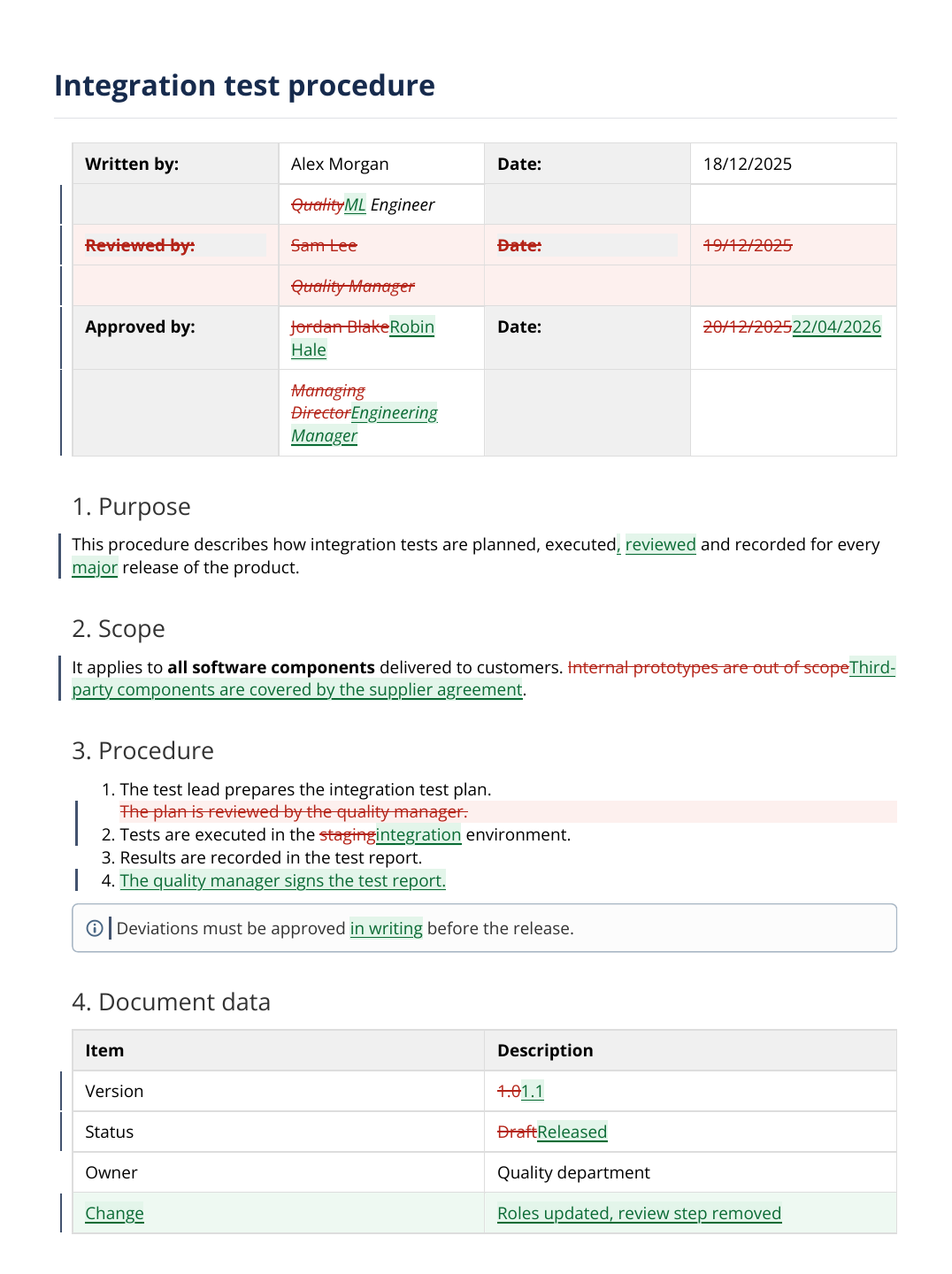
Section titled “What the reader sees”- Added text is underlined in green.
- Removed text is still there, struck through in red, in the place it was removed from. A removed table row comes back as a row, a removed list item as an item of the list.
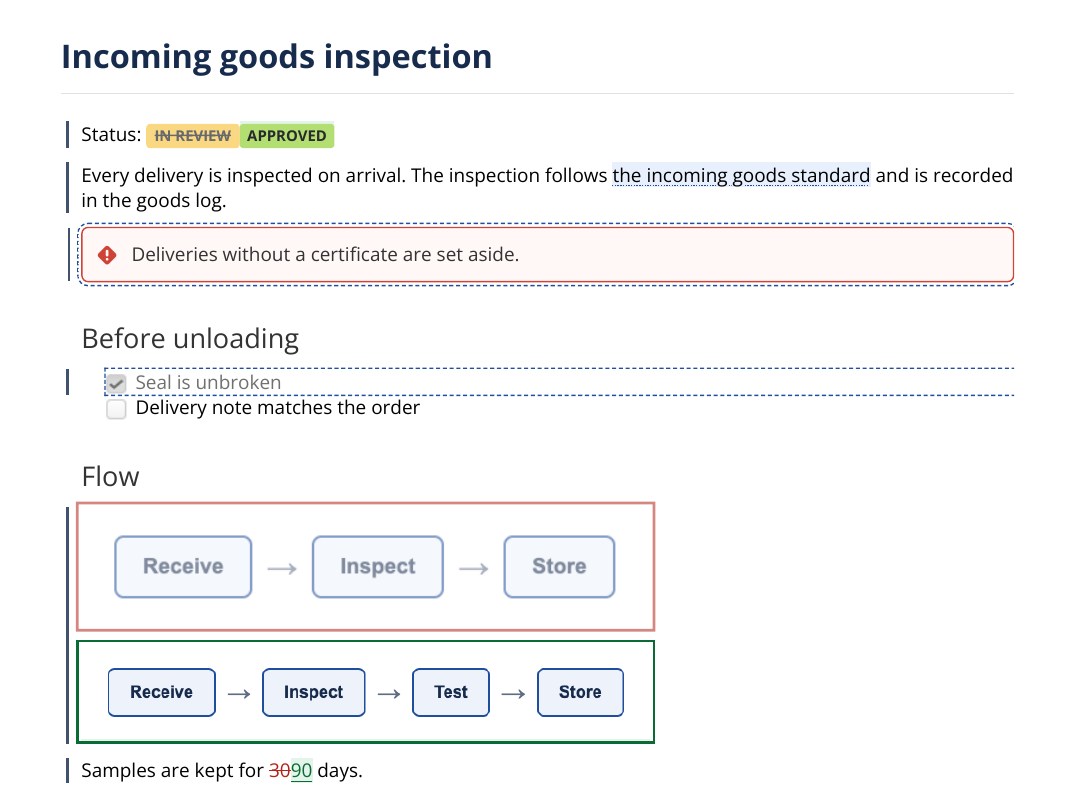
- Pictures count too. A new picture carries a green outline, a removed one comes back faded with a red outline, and a picture that was swapped for another shows both, old and new. An emoji and a status are read the same way: a status that went from In review to Approved, or only from yellow to green, is a change, and it prints as one.
- What changed without a change of words is marked in blue: a link that leads somewhere else now, a task that was ticked or unticked, a note that became a warning, and an attached picture whose file was replaced by a new version, even when the page itself was never saved again.
- A paragraph split in two keeps its words. Press Enter in the middle of a paragraph, or join two with Backspace, and the words are not marked at all: a small ¶ shows the place, underlined in green where a paragraph was split and struck through in red where two were joined. The same goes for list items, and for a note or a code block typed into a line of the older editor or taken out of one: the note is marked, the words around it are not.
- A bar in the margin stands beside every changed line, so a reviewer can leaf through and stop only where something happened.
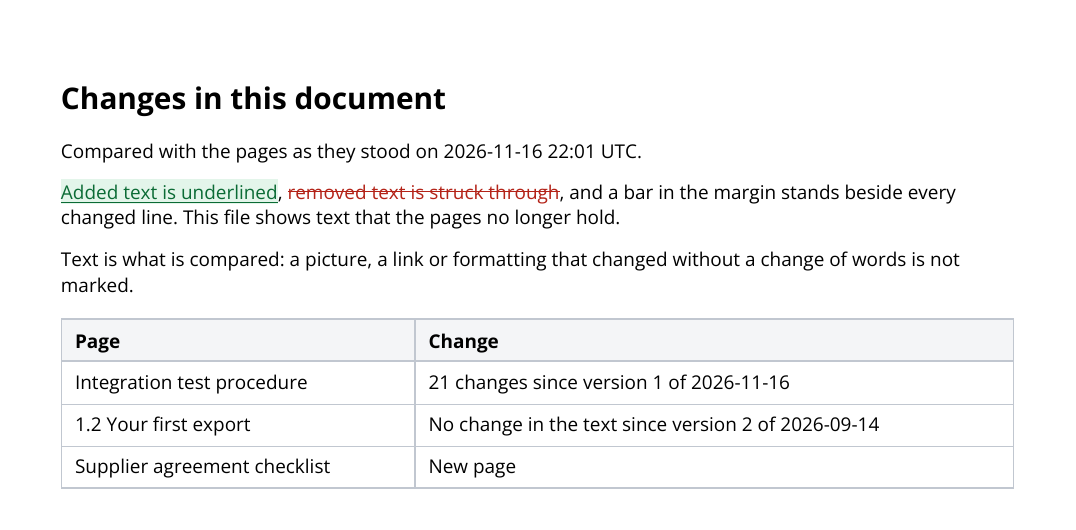
- A summary sheet follows the cover: what the document was compared with, how to read the marks, and one line for every page, saying how many changes it has, that nothing changed, or that the page is new.
Choose what to compare with
Section titled “Choose what to compare with”Turn on Show changes wherever you start an export: in the page’s ··· menu → Apps → Export (XPress), beside the page you pick under Apps → XPress, or on the XPress page of the space for several pages at once. One list under the switch asks what to compare with:
| Compare with | Good for | What XPress does |
|---|---|---|
| An earlier export | “What changed since the document I sent last time?” | Compares every page with how it stood when you made that export, and says which pages that export had and this one does not. |
| An earlier version of the page | “Version 15 against version 13.” | Compares the page with the version you pick from its history. Offered when you export one page. |
| A date and time | A document you never exported with XPress, or a fixed review date. | Compares every page with the version that was current at that moment. |
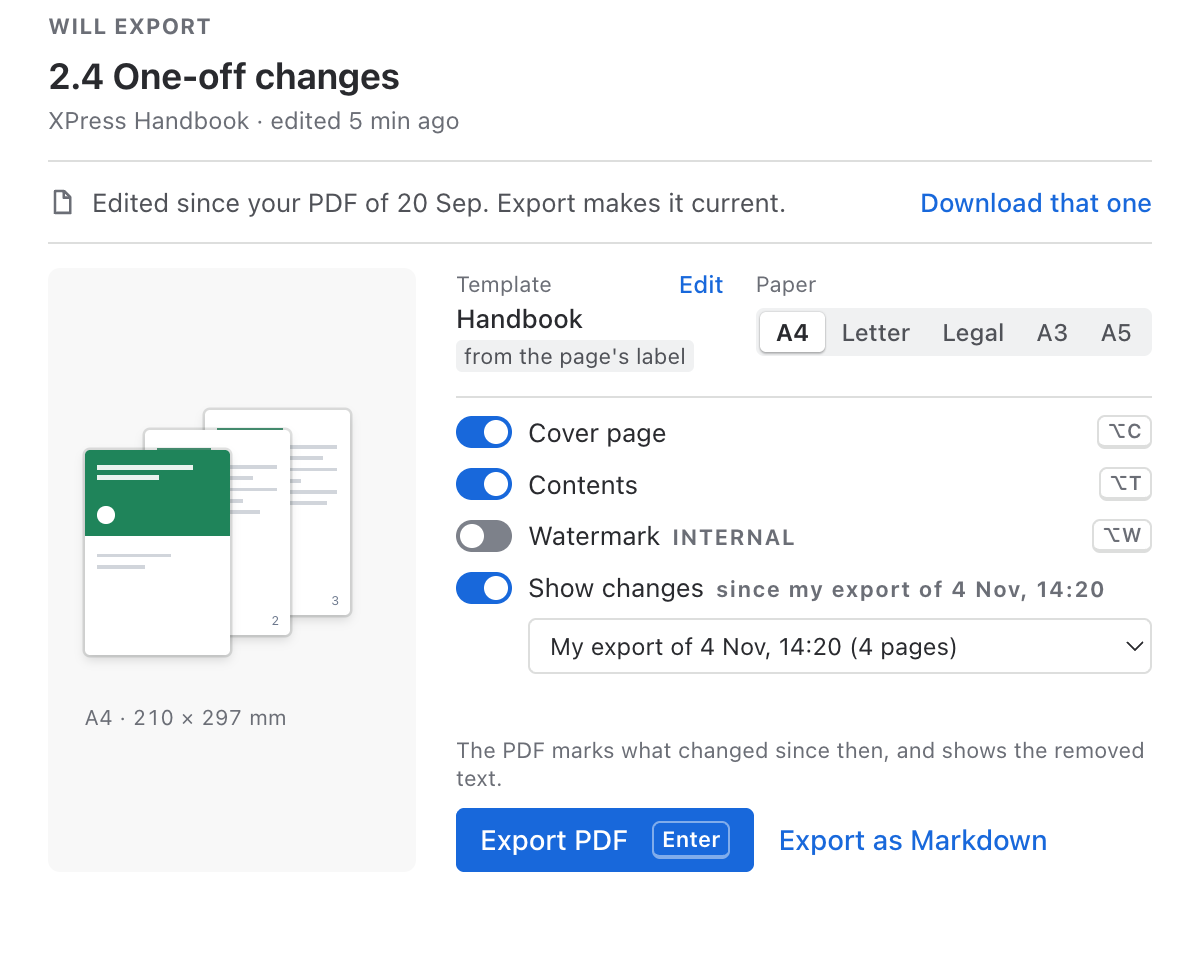
The list offers your own most recent exports from the space, newest first. For an export that is no longer on it, give its date instead: the result is the same comparison.
Several pages at once
Section titled “Several pages at once”Show changes works for one page, a branch or a whole space: the comparison is made page by page, and the summary sheet says what happened to each.
- A page that changed is marked.
- A page with nothing to mark prints as usual, and the summary says so.
- A page that did not exist at the earlier moment carries a New page label.
- A page you selected for the earlier export and not for this one is named on the summary sheet. Where its title cannot be shown, because you can no longer open the page or the template leaves pages out by their labels, it is counted there instead.
Comparing has a share of the export’s time. In a very large export the pages reached after it print as they are, each with a label above its words, and the summary sheet names them.
Good to know
Section titled “Good to know”- The file shows removed text. That is the point of it, and the summary sheet says so on its first lines. Send it to people who may read what the pages used to say.
- Formatting is not compared. Words made bold or given a colour, a resized picture or a recoloured table cell are not marked, and neither is a page’s title: a page that was only renamed reads as unchanged.
- PDF only. HTML and Markdown exports do not show changes.
- Your template stays in charge. Cover, contents, header, footer, watermark and everything a space or a template locks print as they do without the switch: the contents page and the PDF’s bookmarks list today’s headings, and a removed picture or table takes no number. The summary sheet is one sheet more after the cover; a document that numbers its pages from the first page after the cover and contents still starts there at 1. The words run a few millimetres narrower, to make room for the bar.
- Your PDF of the page stays your PDF of the page. A file that shows changes is listed in Your exports as Shows changes. It is never offered as the page’s current PDF, so the page keeps offering the plain one.
- You see what you may see. Earlier versions are read with your own Confluence permissions, like the pages themselves.
- What you hide from exports stays out. A page that keeps a part out of exports with XPress hide in the export shows added text only. Nothing of its earlier versions is printed, so what you hide today never comes back as removed content, however it was worded before: text, pictures, emoji, statuses and links alike. The page says so above its text, and the summary sheet says so beside its count.
- A page that cannot be compared still exports. If an earlier version cannot be read, or a page is too long or was rewritten so thoroughly that marks would not help, the page prints as it is, says so above its words, and the summary sheet says why.
- The export button for readers never shows changes: it hands readers the page as it is.