Headers & Footers
A document that says what it is on every page is a document people trust. XPress puts your logo, your own words and the page number in the margins of every page, and can name the Confluence page each sheet comes from, so whoever picks up page 40 knows exactly where they are.
Where to set them
Section titled “Where to set them”They belong to a template, which is what makes them stick. Press Templates at the top of the XPress page and open Header and footer. The Header and the Footer are waiting there, each with Left, Center and Right, then Logo and Show page numbers, with a live preview beside them. The section appears for PDF templates, because an HTML export has no pages to print them on.
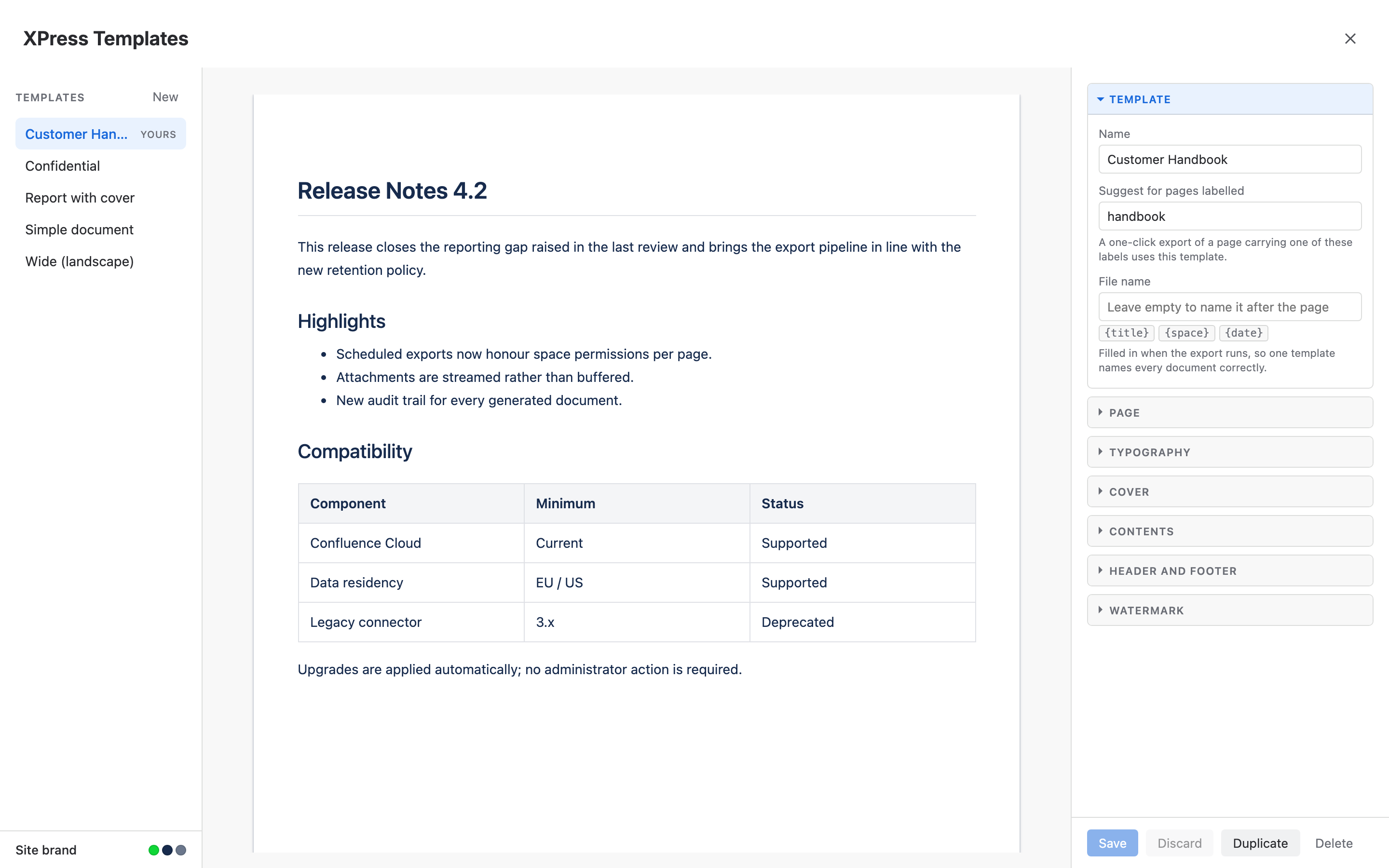
Set them once in a template your team shares, and every export made from it carries the same lines. See Export Templates.
To change the words or the page numbers for a single export without touching the template, use Adjust for this export. There, Header Text and Footer Text each have a Left, Center and Right box, and Page Numbers has its Position and its Style. The logo stays where the template puts it, and its box reads Kept for the site logo.
Three places in each band
Section titled “Three places in each band”The header runs along the top margin and the footer along the bottom, and each has three places: left, centre and right. Each place takes up to two lines: a company name with its address under it, a title with a notice beneath.
Typical use: your logo on the left of the header and the page’s title on the right, then the company name and a classification along the bottom: Bytera · Internal, Draft, not for distribution, ISO 9001 controlled copy.
Leave a place empty and nothing prints there. Short lines read best: when all three are long, they share the width of the page and wrap.
Bold and italic where it counts
Section titled “Bold and italic where it counts”Make the company name stand out and the classification read as one: select words in a place and
press B or I, and Bytera prints bold beside an italic Internal on every sheet, in your
brand’s typeface. The buttons write **bold** and _italic_ around the words, so you can type the
marks too, and a placeholder takes them like any word: **{title}**.
A band with bold or italic words gives each of its places its own share of the line, and long words
wrap inside their place. A place with the page number, the page title, its
section or a page fact prints its words plain, since those change from sheet to sheet, and so does a
place whose placeholders bring more than 40 characters, so a long title still prints whole. A link
prints its words. Words between two asterisks or underscores print as marked, so *Draft* is italic; to
keep the sign as typed, put a backslash in front of it, as in \*Draft\*.
A header and footer in your colours
Section titled “A header and footer in your colours”A running header can be part of the design, not a line of small grey print. Under Header look and Footer look:
- Widths give each place its share of the line in %, so a long title gets the room it needs and a page number keeps a narrow corner. Once you set one, the three always fill the line. While the centre has words it stays in the middle of the page: it keeps its width and the two sides share the rest, and with no centre width both sides take the wider one you set. Leave all three empty and each place takes the room its words need; with a fill or a line they share the line equally.
- Text size, Weight and Text colour set the words, in your brand’s colours.
- Fill runs a band of your brand colour, or a light shade of it, from one edge of the paper to the other. The words turn white on a dark fill and dark on a light one by themselves.
- A line under the header or over the footer separates it from the page.
A cover kept clear of the header and footer stays clear, and on a bound document the widths move with their words when the places trade sides.
Other words on even pages
Section titled “Other words on even pages”A printed document opens like a book, and its left-hand pages can say something else: the document’s title on the left page, the chapter on the right. Switch on Other words on even pages and a second header and footer appear for the even pages, filled in with the odd pages’ words as a start. Your logo and the page number keep their places on both. On a bound document the even pages trade sides like the odd ones, so Inside is the bound edge on every sheet.
A contents page with a header of its own
Section titled “A contents page with a header of its own”On the contents page can leave the contents page’s margins empty, the way a book’s front matter often is, or give it words of its own: a header that says Contents where every other page names the manual, a footer with a different line. They start as a copy of your header and footer, so you change only what differs. Either way its sheets still count, so the first page after it carries the right number.
A first page of its own
Section titled “A first page of its own”A document that opens on its first chapter reads better without a running header repeating what the cover just said. On the first page gives the first sheet of your pages, the one after the cover and everything else that comes before them, margins of its own: leave them empty, or give them words of their own, a header that says Welcome where every later sheet names the chapter, a footer with a line only the opening page carries. They start as a copy of your header and footer, your logo and page number keep their places, and they print on that sheet whichever side of a bound document it falls on. Every other sheet prints exactly as before.
Your logo in the header or footer
Section titled “Your logo in the header or footer”The mark that tells a reader whose document this is belongs on every page, not only the cover. Choose Logo in Header and footer, then Logo place: top or bottom, left, centre or right.
- Site logo prints your full logo.
- Site logo (compact mark) prints the compact version, which suits the narrow band when your full logo is wide.
Both come straight from Your Brand, so there is nothing to host and nothing to update in each template when the logo changes.
The logo takes its whole place. Words typed there do not print while the logo sits on them, and the designer shows that box greyed out with The logo takes this place. Move the logo, and the words come back.
It prints up to 8 mm tall, keeps its proportions, and comes out smaller in a narrow margin. Below 6.6 mm of margin there is no room for it, and the designer tells you so. If your site has no logo uploaded yet, the place stays empty, just as it does on the cover. A logo you host at a web address is for the cover page only.
The logo prints exactly as its file is drawn, empty space included. If the file leaves room around the mark, that room shows in the margin as well, so crop the file close to the mark and it lines up with the words beside it.
Lines that write themselves
Section titled “Lines that write themselves”A header typed out in full is right on the day it is written. Q3 Report - Engineering is wrong the moment the quarter turns, and wrong in every template anyone copied from it.
So type a placeholder instead and XPress fills it in when the document is made:
| Placeholder | Becomes |
|---|---|
{title} |
The document’s title, the same on every sheet: your cover title, or the first page’s title when there is no cover |
{page-title} |
The title of the Confluence page this sheet comes from. On the cover and the contents page, the document’s title |
{section} |
The heading the part of the page on this sheet comes under. How sections work → |
{space} |
The space the export was made from |
{date} |
The date it was exported, as 2026-08-25 |
{page} |
The number of the page it is printed on |
{pages} |
How many pages the document has |
Click one under the header or the footer and it drops in wherever you were typing. A footer
reading {space} · {date} on a template your whole team shares gives every document a correct
dateline without anybody typing one, and the preview shows you exactly what it will say.
Facts from the page itself
Section titled “Facts from the page itself”A document that says who wrote it, when it last changed and which version it is, is one a reader can trust. These placeholders read it all from the document’s first page at the moment you export, so a template written once stays right for every page it is ever used on:
| Placeholder | Becomes |
|---|---|
{author} |
Who created the page |
{created} |
When it was created |
{modifier} |
Who changed it last |
{modified} |
When it was last changed |
{version} |
Its version number in Confluence |
{labels} |
Its labels, separated by commas |
{url} |
Its address in Confluence |
{short-url} |
Its short address in Confluence, the kind that fits a footer |
{status} |
Its status, such as In progress or Verified, as Confluence shows it |
{space-key} |
The space’s key, such as DOCS |
{space-description} |
The space’s description, as plain text |
{user} |
The person who exported it |
{property:Name} |
A value from the page’s Page Properties table, by the name in its first column |
They wait behind more, next to the placeholders above. A cover subtitle reading Version {version}, last changed {modified} by {modifier} answers the reader’s first question before they turn the page.
The facts of each page, on its own sheets
Section titled “The facts of each page, on its own sheets”A document made of many pages has many authors and many versions, and a reader holding page 40 wants to know about page 40. In the header or footer, the same facts come for the page each sheet belongs to:
| Placeholder | Becomes |
|---|---|
{page-author} |
Who created the page this sheet comes from |
{page-created} |
When that page was created |
{page-modifier} |
Who changed it last |
{page-modified} |
When it was last changed |
{page-version} |
Its version number in Confluence |
{page-url} |
Its address in Confluence |
A footer reading Changed {page-modified:d MMMM yyyy} by {page-modifier} · v{page-version} tells
the reader on every sheet how fresh what they are reading is. The cover and the contents page
belong to no single page, so there they print the document’s facts, as {page-title} prints the
document’s title.
A page that already keeps its details in a Page Properties table needs nothing typed twice:
{property:Customer} prints the customer it names, {property:Release date} its date, exactly as
the page shows them, a status as its label and a person by name. A name the table does not have
prints as nothing, and the designer’s preview shows the name you asked for in brackets.
Say what a missing value should read instead: write it after a bar, and
{property:Owner|No owner yet} prints the owner when the page names one and No owner yet when
it does not. The bar works on every placeholder except the ones the header and footer fill in on
each page ({page}, {pages}, {page-title}, {section} and the facts of each page):
{author|Unknown}, {modified:d MMMM yyyy|not yet}, {space-description|No description yet}. And when your space keeps its shared details on its home page, turn on Page
Properties values the first page lacks come from the space home page in the template: a value the
first page has wins, and one it lacks comes from the home page, read with the permissions of the
person exporting like every page.
Every fact is read with the permissions of the person exporting, so a document never shows a name or a date they could not see in Confluence, and a name appears the way Confluence shows it to them.
Dates the way your readers write them
Section titled “Dates the way your readers write them”Put a format after a colon and any date follows it: {modified:d MMMM yyyy} prints
21 October 2026, {date:dd.MM.yyyy} prints 23.10.2026 and {created:EEEE, MMM d} prints
Monday, Jan 5. yyyy and yy are the year, MMMM, MMM, MM and M the month, dd and d
the day, EEEE and EEE the weekday. Words in single quotes stay as they are.
The month and the weekday can speak your readers’ language: set Month and day names in
under Typography to German, French, Spanish, Italian, Dutch, Portuguese, Polish, Swedish,
Danish, Norwegian, Finnish or Czech, and {modified:d. MMMM yyyy} prints 21. Oktober 2026.
Dates fall on the day in UTC unless you choose otherwise. Dates fall on the day in takes the
time zone of whoever exports, or a zone by name such as Europe/Berlin or America/New_York, so a
document exported just after midnight carries the day it was made where your team is. It applies to
{date}, {created}, {modified}, {page-created} and {page-modified} alike. Where a person’s profile keeps their time zone to
themselves, their dates fall on the day in UTC.
Where placeholders work
Section titled “Where placeholders work”Every placeholder except {page}, {pages}, {page-title}, {section} and the facts of each page also works in the watermark,
the file name and the cover’s title, subtitle and lines. {title} {date} names your downloads
so they sort themselves. In a watermark, a long title is cut short with an ellipsis, so the words
around it stay whole and easy to read.
The same title names the document itself: a PDF opens with it in the reader’s window bar and a document manager indexes on it, and an HTML export uses it for the browser tab. Nothing to switch on - it is the cover’s title, or the first page when there is no cover.
File names keep the script they were written in: a space called Qualitätssicherung, 製品ドキュメント or Отчёт downloads under that name, not a transliteration of it. Characters a filesystem reads as structure - slashes, colons, quotes - become underscores.
Every date is the day in UTC. Without a format it is deliberately written the same way round
everywhere: a document is often read a year later, in another country, by somebody working out
whether it is the current one, and 03/04/2026 cannot be read at all under those conditions.
The page title on every sheet
Section titled “The page title on every sheet”A long document is easier to find your way around when every sheet says where you are. Put
{page-title} in the header or footer and each sheet carries the title of the Confluence page
it comes from, on every sheet of that page, however long it runs. Pair it with {title} and a
header reads Customer Handbook · Returns and refunds, the way a printed manual does. The
designer’s preview shows each sample page with its own title.
The cover and the contents page belong to no single page, so there {page-title} prints the
document’s title instead, and a header never trails off into nothing.
A page that is only a title opens its section on the same sheet as the page that follows it, so that sheet carries the following page’s title.
The section on every sheet
Section titled “The section on every sheet”A long page reads like a book when its chapters announce themselves. Put {section} in the header
or footer and every sheet names the part of the page it prints: Returns and refunds · Shipping
damage over the sheets of that section, Exchanges over the next.
Sections follow the heading level your template starts on a new page. Under Typography,
switch on Start on a new page for a heading level, and each heading of that level opens a
section on a fresh sheet; with several levels switched on, the highest one names the sections.
Until a level is switched on, {section} prints nothing, and the designer says so under the header.
Every section starts a fresh sheet, also where the template alone would let a heading run on:
- Words before a page’s first section, under its title, print no section.
- A heading that opens its page shares the title’s sheet, and that sheet already carries its name.
- A heading right after another heading keeps it company: the sheet starts with the first of them.
- A heading that opens a panel, a list or a single-column layout row takes it along: the sheet starts with the panel, the list or the row. A title the block carries of its own, an expand block’s or a panel’s, stays on the sheet before.
- Headings inside a table or a layout with columns open no section, and in two columns
{section}prints nothing.
The designer’s preview shows each sample page with its first section’s heading.
Page numbers
Section titled “Page numbers”Turn on Show page numbers and choose a Page number position: top or bottom, left, centre
or right. The format is current / total, so page 3 of a 12-page document reads 3 / 12.
Page number style writes them as 1, 2, 3, i, ii, iii, I, II, III, a, b, c or
A, B, C. The style applies
to {page} and {pages} too, wherever you typed them, so a document never counts in two
styles. While {page} or {pages} is in use, Page number style stays on offer even with the
page numbers off.
The count starts on the first sheet, so the cover and the contents page are counted too, unless
you switch on Start page 1 after the cover and contents. Then the first page of your content is
page 1, {pages} counts the content alone, the cover, the contents page and any
page of your own before your content
carry no number, and the contents page lists the numbers the pages print, the way a printed manual
reads. Pages numbered in letters count every sheet from the first.
Bound documents: Inside and Outside
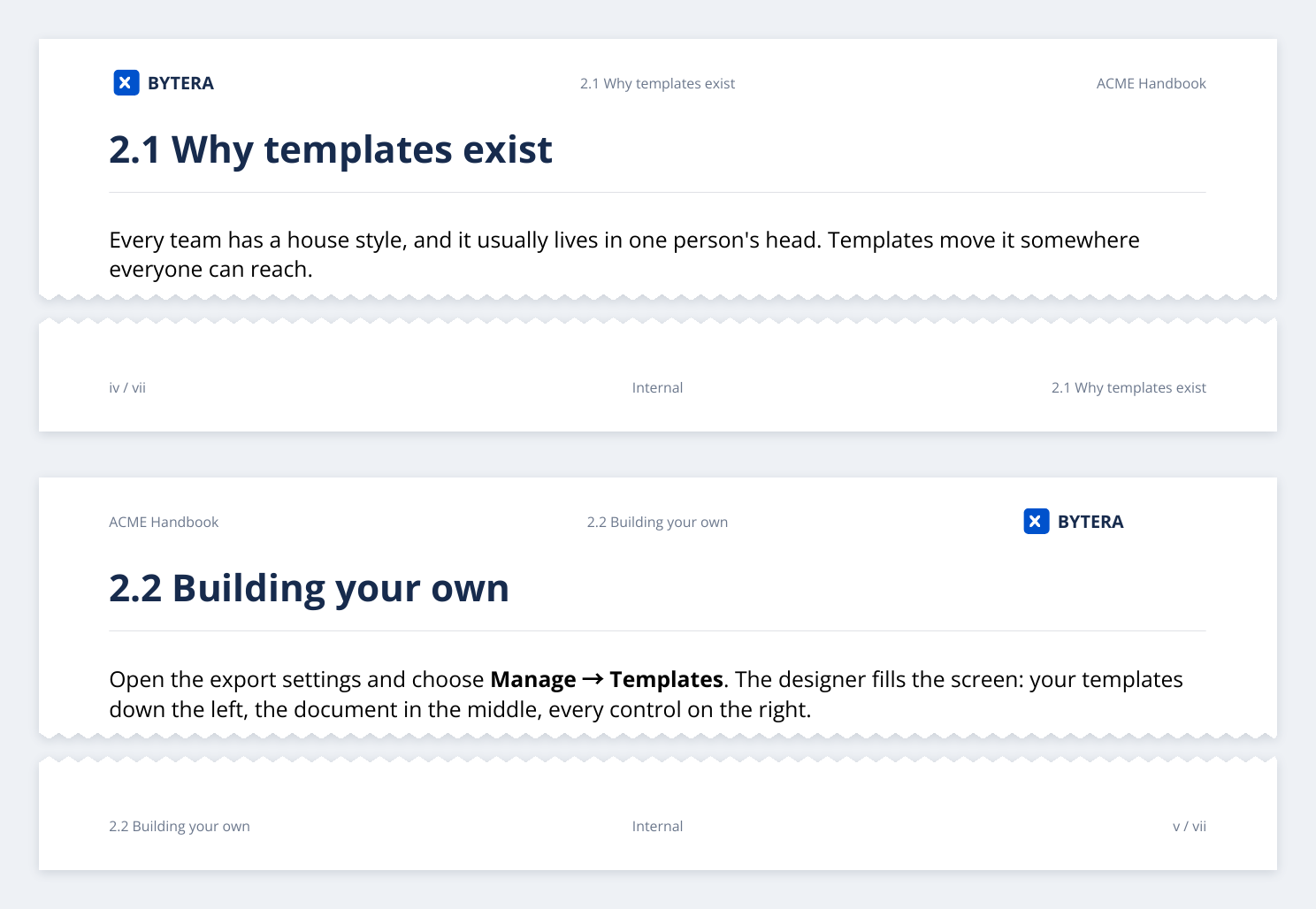
Section titled “Bound documents: Inside and Outside”A document printed on both sides and bound should keep its header in step with the binding. Switch on Mirror the margins for double-sided printing (see Page Layout) and the header and footer follow: whatever sits on the left or the right, words, the logo or the page number, trades sides on every other page. The centre stays where it is.
While the margins mirror, the designer names the side places Inside and Outside: inside
is the bound edge, outside is the edge a reader’s thumb finds. Page 1 is the right-hand page of
an open book, so its inside is on the left. Put the page number or {page-title} on the outside
and it is the first thing a reader sees when leafing through.
A cover with nothing in its margins
Section titled “A cover with nothing in its margins”A cover carries its own title. A running header repeating it above, and a page number below, is what makes a document look like a printout rather than something that was designed.
In a template with a cover page, switch on Leave the cover’s margins empty. The first sheet gets no header, no footer, no logo and no page number; everything from the second sheet on is unchanged.
Leaving room for them
Section titled “Leaving room for them”Headers and footers print inside the margins. If your margins are tight the text sits very close to the content, and at zero it has nowhere to go. Around 15-20 mm top and bottom is comfortable, and gives a logo its full height. See Page Layout.
A few combinations that work
Section titled “A few combinations that work”| For | Header | Footer | Numbers |
|---|---|---|---|
| Branded report | Logo left, {page-title} right |
Company · Internal centre | Bottom right |
| Internal document | {title} centre |
Company · Internal centre | Bottom right |
| Dated record | {title} centre |
{space} left, {date} centre |
Bottom right |
| Bound manual, mirrored margins | {title} inside, {page-title} outside |
Compact logo centre | Bottom outside |
| Formal handbook | Logo left, {title} right |
(empty) | Bottom centre, I, II, III |
| Signoff copy | CONFIDENTIAL centre | Reviewer: ____ left | Bottom right |
| Reference tables | (empty) | (empty) | Bottom right |
What is not supported
Section titled “What is not supported”- A running head from the headings inside a page.
{page-title}names the Confluence page; a heading halfway down it does not change the header. - An image other than your site’s logo. A logo you host at a web address goes on the cover page.
- Links you can click in the header or footer. A link there prints its words; put links on a static page or in your pages.
- Export Templates - where these settings live.
- Your Brand - the logo and typefaces your header and footer wear.
- Page Layout - paper size, orientation, margins.