Export Templates
Every team has a house style. The trouble is that it usually lives in one person’s head, and every document drifts a little further from it.
Export templates fix that. Set up the cover, the header, the margins and the watermark once, give it a name, and it belongs to everyone on your site. The next person to export a handbook picks Customer Handbook and gets a document that matches the last one exactly.
Four ready to use, right now
Section titled “Four ready to use, right now”You do not start from a blank page. XPress ships with four templates covering what most teams export:
| Simple document | Clean A4 portrait. The one you will reach for most days. |
| Report with cover | A title page and a linked contents page, for anything you send outward. |
| Confidential | A diagonal watermark on every page, plus a CONFIDENTIAL header and a Do not distribute footer. |
| Wide (landscape) | Landscape with tight margins, so big tables and diagrams actually fit. |
Use them as they are, adapt one, or build your own. Nobody owns the starters, so an admin can clear them away once your own templates take over.
Want a head start on something more finished? The designer’s Library holds six complete designs: a handbook with numbered chapters, a report, release notes, meeting notes, a confidential document, and a technical document in German from Inhalt to Seite 1 von 9. See Start from the library.
See it before you export
Section titled “See it before you export”Press Templates at the top of the XPress page, in a space or under Apps, or Edit beside the template in Will export. The designer fills the screen: your templates down the left, the document in the middle, every control on the right.
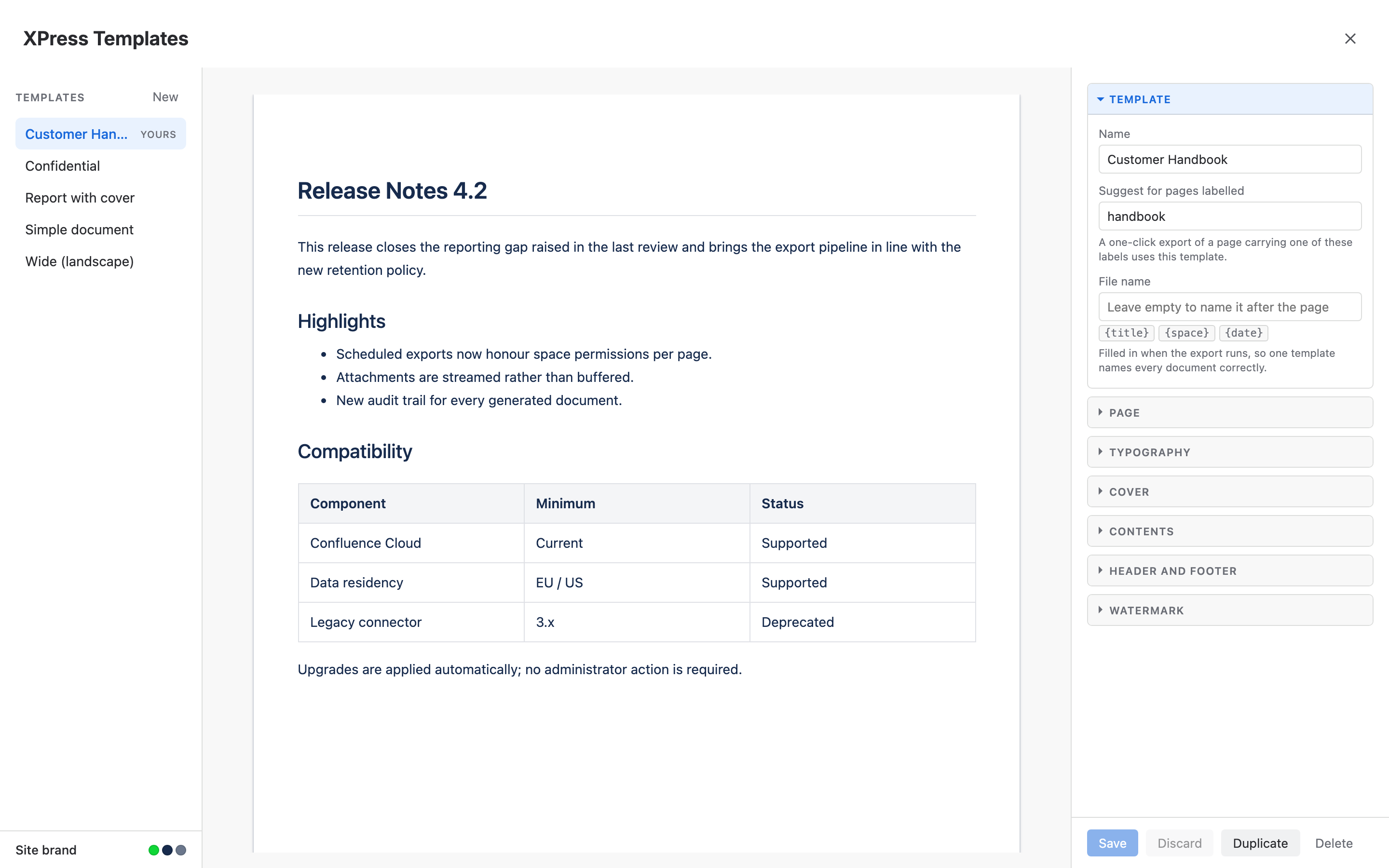
That preview in the middle is not a mock-up. It lays your template out on a real page - cover, margins, header, footer, page numbers, watermark - over sample content, so you can judge the finished document without exporting one. Change a margin and the page moves. No export, check, adjust, export again. Your site logo sits on the preview’s cover, and in its header or footer, right where the export will put it. The one thing that looks different on paper is your own pages, which keep their Confluence styling in the finished export.
A Markdown template has no page to lay out, so its preview shows what it makes instead: the files of the export and the Markdown of each page, made from sample pages by the same converter every export uses.
Changed your mind? Undo and Redo beside Save step back and forth through your changes to the template, and so do Ctrl+Z and Ctrl+Shift+Z (Cmd on a Mac) anywhere outside a text field.
New starts a fresh template. Duplicate copies the one you are looking at - which is how you build on a colleague’s template, or on one of the starters, without changing what everyone else is using.
Start from the library
Section titled “Start from the library”Press Library above your templates and pick a design. It opens as a new template with its whole look already set: the header and footer, the style of tables and panels, and a cover and contents page where the design has them. Change what you like, give it your name, and press Create. Nothing is added to your site until you do.
| Handbook | A cover in your colour, numbered chapters that each start on a new page, a page that says which version the reader holds, and a back cover. |
| Report | A cover with the author, a short contents page, roomy text and calm tables. |
| Release notes | No cover: the pages run on under the space and the date, with striped tables. |
| Meeting notes | Compact pages that run on, with the page title and its last change at the top. |
| Confidential document | A CONFIDENTIAL watermark and header, who exported it and when in the footer, and a closing notice. |
| Technische Dokumentation | German throughout: Inhalt, Abbildung, Seite 1 von 9 and German dates, on a full colour cover. |
Every design takes your colours and typefaces from Your Brand, and most carry your logo too, so it looks like yours from the first preview.
Move a template to another site
Section titled “Move a template to another site”Built the perfect template on your test site? Press Download and XPress saves it as a file. On the other site, press Upload above the templates and choose that file. The template opens as a new one, so you can look it over before you press Create.
The file carries the template’s settings, its labels and its locks. Your logo, cover photo, fonts and colours stay with each site’s own brand, so the template picks up the brand of the site it lands on. A file is also a simple way to keep a copy of a template outside Confluence.
One space, one look, zero effort
Section titled “One space, one look, zero effort”Point a space at a template and every one-click export in it - the Export (XPress) action in a page’s byline, the one in the ··· menu - uses that template automatically.
Nobody has to remember. Nobody has to open the settings. The Engineering space produces Engineering documents, the Sales space produces Sales documents, and it happens whether or not the person exporting has ever thought about templates.
Setting a space’s default is an admin decision, because it changes what every export in that space looks like. Space admins and site admins can set it; for everyone else it simply is not there. In the space’s XPress page, press Space settings at the top, pick the template and press Use as space default. The window that opens lists what the template locks; tick Lock this template in this space when every export from the space must use it, then confirm. The picker marks it Space default from then on, so everyone can see the look the space has chosen.
The two locks work together. Say the template’s owner locks the company header in the designer, and the space admin locks the template in the space. Every export from the space then carries that header, nobody there can pick another template, and the paper and the cover stay each person’s to choose. See A default template per space.
Your favourites, and the one you used last
Section titled “Your favourites, and the one you used last”Pick a template once and XPress remembers it for you. Choose it in the space’s XPress page, export, and from then on it is where the picker starts in any space that has not chosen a default, and what your one-click exports use for pages no space and no label has claimed. The Will export panel says so: the template you used last. Changed your mind? Pick Simple document again, export once, and XPress goes back to starting from it.
Templates you reach for often can lead the list. In a space, choose More options, select one and press Add to my favourites: your favourites sit at the top of every template list with a star, up to twenty of them. They are yours alone. Nobody else’s list changes, and nobody sees yours.
A long list finds itself. Once a space’s XPress page offers nine templates or more, a Find a template box sits above the picker: type a few letters of the name and the list narrows to what matches, the template you have chosen always staying in it. Type this space to see the space’s own templates.
A space’s choice still comes first. Where a space has a default template, the picker starts on it and one-click exports use it, and a space that locks its template exports with it whatever you used elsewhere.
Shared, but not fragile
Section titled “Shared, but not fragile”A template your team relies on cannot be quietly changed underneath them. Anyone can create a template, but only the person who made it - or a site admin - can edit or delete it. A space’s own templates are looked after by that space’s admins.
Open someone else’s and the designer tells you plainly that it is read-only, and offers Duplicate. You get your own copy to change, and theirs stays exactly as it was.
Need a one-off? Flip the switches in Will export, or choose More options, then Adjust for this export, and change whatever the template leaves unlocked. XPress flags the settings panel while they differ from the template, with Reset to template to put them back, and leaves the template itself untouched.
Exporting a single page from the XPress page under Apps? Pick it, and the Will export panel changes the paper size, cover, contents and watermark for that export alone - see One-Click Export.
Templates for one space
Section titled “Templates for one space”Some looks belong to one team. A space admin can make templates that only their space sees: open Templates from the space’s XPress page, press New, and set Available in to This space only. The designer lists the space’s own templates first, and the pickers in that space mark them (this space).
A space template stays in its space. It never shows up in another space’s pickers or label suggestions, and it can be that space’s default. The space’s admins and site admins can change or delete it; everyone else in the space can use it, duplicate it or download it. Site admins see every space’s templates in the designer, under Other spaces, so a template whose space is gone never sits out of reach.
Keep a template out of the pickers
Section titled “Keep a template out of the pickers”Retiring an old template, or keeping one for a single purpose? Turn off Offer in the template pickers. It leaves the export pickers and label suggestions, the designer marks it hidden, and a space that uses it as its default goes on exporting with it. Turn the switch back on whenever you need it again. Simple document stays what XPress uses when nobody has chosen a template, hidden or not.
Lock what every document must keep
Section titled “Lock what every document must keep”Some settings are not a matter of taste: the legal line in the footer, the confidential watermark, the file name your archive sorts by. Lock them in the template, and everyone who exports with it keeps them.
In the designer, every setting that shapes the document has a padlock beside it. Press it, and everyone who exports with the template gets that value: they see it with a padlock beside it and cannot change it for their export. Press it again to let it go. A line at the top of the settings names everything the template locks, even settings on rows you cannot see right now. Only the template’s creator or a site admin can lock or unlock them, the same people who can edit it. Open someone else’s template and you see what it locks, without being able to change it.
A lock holds the whole setting. The margins lock holds all four sides and the mirroring, the watermark lock holds its words and its look, and a detail that belongs to a setting is locked with it, such as where the page numbers sit and how they are written. The header’s three places lock together, and so do the footer’s, so a legal line split across the left and the right is held as one line.
A locked header or footer with words in it, a locked logo in the header or footer, or locked page numbers that are switched on, keep every export a PDF, since that is the only place they print. They also keep room to print: at least 8 mm at the edge they sit on unless you lock the margins too; the cover sheet unless you lock the cover page too; and your own pages, with the header and footer on and on white or the light shade, unless you lock the sections and static pages too. Locked words in the header or footer also keep Start page 1 after the cover and contents off unless you lock the page numbers too, so they print on the cover and the contents page as well. A locked logo or locked page numbers print on the first page too, even with nothing in its margins, unless you lock the header or the footer, which keep the template’s choice there. A locked footer keeps the even pages, the contents page and the first page as the template sets them, with words of their own or without, even while the header is open. The designer holds Format at PDF and says where the rest applies, until you unlock them.
Locked margins frame every sheet: the contents page and your own pages keep them too, unless you also lock the page look or the sections and static pages, which then keep the margins your template gives them. Margins of their own keep the 8 mm a locked header or footer needs, unless their own lock holds them.
A locked watermark with words of its own is held the way a space holds one it requires. Every
export keeps each margin at 40 mm or less, locked margins included, so the watermark has room to
print whole, and a {title} or {space} in it takes no more room than its own words. The
designer’s preview draws the page that way and says so beside the margins.
A Markdown template can lock its format, its file name and its Markdown settings. A lock on anything of a page, such as the paper, the cover, the header or the watermark, keeps every export a PDF, so the designer offers Markdown only while no such lock is on, and says which to unlock.
A template’s locks go wherever it is used: the one-click exports, the XPress page and the space’s XPress panel. Duplicate copies them too, and the copy is yours to unlock. On their own, they hold for everyone who exports with this template, and people can still pick another template or unlock their own copy. When the settings must hold for everyone in a space, a space admin locks the template in that space, and from then on nobody there can pick another.
What a template covers
Section titled “What a template covers”Everything around your content:
| Control | What it does |
|---|---|
| Format | PDF, HTML or Markdown. A Markdown template has no page, so the page settings below step aside for it |
| Paper size | A4, Letter, Legal, A3, A5, A2 or a size of your own (see Page Layout) |
| Orientation | Portrait or Landscape |
| Margins | Top / Right / Bottom / Left, in millimetres - or Inside / Outside, mirrored for binding |
| Page look | A light shade of your accent, a border and a picture under the words for your content pages and your contents page, which can also have margins of its own (PDF). See A look for every part |
| Title sizes | Size, weight and line height for the cover title, page titles and the contents heading - see Page Layout |
| Cover page | Its design, title, subtitle, up to three lines of details, whether it prints the export date, which logo it uses, and whether its margins stay empty, or rows of your own. With no title typed, the cover carries the document’s own title - see Your Brand |
| Back cover | A last sheet with up to six lines and the cover’s logo, on white or a brand colour (PDF). See A back cover |
| Order of the sections | The contents page, its lists, your pages, the index and your own pages in the order you choose, between the cover and the back cover. See Everything in its place |
| Static pages | Up to ten pages of your own words, such as an imprint, a foreword or a legal notice, wherever the document needs them, each with its own colour, and its own margins and picture (PDF). See Pages of your own |
| Contents page | A linked table of contents - the exported pages, and optionally the headings inside them down to Heading 6 with each level’s indent, each with the number of the page it starts on in a PDF. Its title is yours to word, and the pages’ own contents macros can be left out |
| Numbered headings | Each exported page becomes a numbered section, with its own headings numbered beneath, in digits, Roman numerals or letters with your own words around them. See Page Layout |
| Numbered pictures | Every attached picture captioned Figure 1, 2, 3, or with your own word before the number, using its description text if it has one |
| Numbered tables and code | Every table captioned Table 1, 2, 3 and every code block Listing 1, 2, 3 with its title, in your own words, above or below, each with a list after the contents if you like. See Page Layout |
| Header | Words on the left, in the centre and on the right of the top margin (PDF). See Headers & Footers |
| Footer | The same three places along the bottom margin (PDF). Each place takes two lines, and each band its own widths, text style, fill and line |
| Logo (header or footer) | Your site’s logo or its compact mark, in any of those six places (PDF) |
| Page numbers | On or off, at the top or bottom, as 1, i, I, a or A (PDF) |
| Watermark | Text, position, opacity, rotation, size, font, colour, case, frame, offset, in front of or behind the text |
| File name | What the file is called when it lands. Leave it empty and it takes the page’s title - the cover title when there is a cover |
| Document properties (PDF) | The author, subject and keywords a PDF reader and a document library show for the file, with placeholders such as {author} and {space} |
| Bookmarks (PDF) | How deep a PDF’s bookmarks go, how many levels stand open, and whether the reader opens with them showing. Locked with the file name and the document properties. See Finding your way around a long one |
| Markdown | How the files are laid out, named and written when a page is exported as Markdown - see Markdown Export |
The header, the footer, the watermark, the file name and the cover’s title and subtitle all take
placeholders such as
{title}, {space} and {date}, and facts from the page itself
such as its author, its version and when it last changed, so one shared template dates and
labels every document correctly without anyone typing it. The header and footer can also name
the page each sheet comes from, with {page-title}.
Whatever you choose applies to the whole document - one page or two hundred.
A cover in five designs
Section titled “A cover in five designs”The cover is the one page everyone sees, so a template chooses how it looks:
- Centred - the title in the middle of a white sheet, calm and classic. Every template starts here.
- Left, under a brand colour rule - the title low on the left, set off by a bar in your brand colour, the look of a technical manual.
- Brand colour band - the top of the sheet in your brand colour, with the title on it.
- Full brand colour - the whole sheet in your brand colour.
- Your own - a cover you build from rows of your own words, see A cover of your own.
Under the title, the first four designs take up to three short lines for who prepared it, its version or how confidential it is, and the placeholders work in them: Prepared by {author}, Version {version}, {modified:d MMMM yyyy}, Status: {property:Status}. Words on the colour turn white or dark, whichever reads better on your brand colour. A colour cover runs to the edge of the paper when nothing has to print in its margins, and you can leave the export date off.
The colour band, full colour and your own designs can also show your site’s cover image under the colour. Brand colour over the image sets how much of the colour lies over it, from none to nine tenths, so the title reads clearly whatever the photo. The designer’s preview shows the cover exactly as it will print.
A cover of your own
Section titled “A cover of your own”When the cover has to look like the rest of your company’s documents, build it yourself. Choose Your own under Design and the cover becomes rows: each sits at the top of the sheet, in its middle or at its foot, and splits into up to three columns. Your logo goes top left and a classification top right, the title sits in the middle, and who prepared it runs along the foot.
A column takes words with the same buttons as a static page: bold, italic, a link, a list, a
subheading and your logo, with the placeholders a static page takes, page properties included. Each column has a
size, Title, Subtitle, Text or Small, and sits on the left, in the centre or on the
right. A cover holds up to six rows, and when you switch to your own, the rows start from what your
design printed, so nothing has to be typed again. Rows show your site’s logo, so a logo from a web
address stays with the other designs. The cover’s Title stays the document’s title: {title}
prints it in the rows, in the header and in the file name, and the PDF’s bookmarks still start with
it.
Colour gives the sheet a light shade of your accent, your accent or your text colour, and the cover image can lie under the brand colour as in the colour designs; the words turn white or dark to read on it. A coloured cover runs to the edge of the paper when nothing prints in its margins.
Your rows hold their place: a placeholder’s value prints in up to four lines on paper, so a long page title never pushes the foot of the cover off the sheet. To keep the cover the same for everyone who exports, lock Design together with the title, subtitle, details or logo. While those are locked and the design is open, the export prints the classic cover, so locked words always print.
A back cover
Section titled “A back cover”A printed document closes better than it stops. Add a back cover puts a last sheet behind your pages with up to six lines at its foot, your company’s address, a notice, a document number, with the same placeholders as everywhere else, and the cover’s logo above them if you like. Leave it white or run your brand colour to the edge of the paper; its words turn white or dark to read on it. Nothing prints in its margins. When your pages count from 1 after the contents, the back cover is not counted; when they count every sheet, it is counted with them. A back cover belongs to the PDF, so an HTML export ends with your last page.
Pages of your own
Section titled “Pages of your own”A finished document often needs a page that no Confluence page holds: the imprint behind the cover, a foreword before the first chapter, the legal notice at the end. Add up to ten in Sections and static pages, with up to 12,000 characters of text between them, each with a title and your own text, with the same placeholders as everywhere else. An empty line starts a new paragraph.
Make the words read like a finished page: select some and press B or I to make them bold or
italic (press again to take it off), Link to link them to a web address starting https:// or
to an email address, which stays a live link in the PDF, or to {url} for the document’s first page
in Confluence ([Read it online]({url})), or select a few lines and press • or
1. to turn them into a list, or H to make one a subheading. Logo puts your site logo
in, written : put mark or cover in place of logo for your compact mark
or your cover image. On a line of its own a picture stands on its own, up to 30 mm high; beside words
it sits in the line. A picture your brand does not have prints its words instead, and so does
every picture in a document they would make very large, such as a big photo before every page of
a long export. The buttons write small marks
into the text, such as **bold**, - item or 1. item, so you can also type them, and a numbered
list keeps the numbers you type. To keep a line that starts with - or a number and a dot as plain
text, put a backslash in front of it, as in \1. October 2026; the same goes for \*, \_ and \[
anywhere in a line. Then choose where the words sit: on the left, in the centre or on the right, and
at the top of the page, in the middle or at its foot, the place for a legal notice.
Put each one where it belongs in Order of the sections, just above them (see Everything in its place). Keep it white, give it a light shade of your accent, or run a brand colour to the edge of the paper, where its words turn white or dark to read on it and the header and footer step aside. On white or the light shade, you choose whether the header and footer print on it. In an HTML export each one is a page of the document too.
When your pages count from 1 after the contents, a page of your own before your first page carries no number and is not counted. One after your pages is counted with them.
Each one can also have margins of its own and a picture under its words, as the next section shows.
Everything in its place
Section titled “Everything in its place”Every kind of document has its own running order. A handbook opens with its contents; a report keeps it at the back, so the first thing a reader sees is the summary; a manual closes with its index and only then the legal notice. Order of the sections, under Sections and static pages, lists everything between the cover and the back cover: the contents page, its lists of pictures, tables, code and equations, your pages, the index and each page of your own. Up and Down move a section, and the preview shows the contents page, your pages and your own pages in their new order.
The cover always opens the document and the back cover always closes it. Lists that come right after the contents page print with it, as they always have; put them anywhere else, at the back for instance, and they start on a page of their own, in the contents page’s look.
Page numbers follow the order. With Start page 1 after the cover and contents, everything you put before your pages stays out of the count and everything after them counts on, so a contents page at the back says page 1 for your first page and carries its own number after the last.
A look for every part
Section titled “A look for every part”Give your content pages a look of their own: a light shade of your accent over the whole sheet, a border in the accent around the text, and a picture under the words, such as your logo, faint in the middle of every page, or your cover image in a corner. The contents page takes a look of its own the same way, with margins of its own if it needs more room or less. Each page of your own takes its own colour, margins and picture. The cover keeps its design and the back cover keeps its colour.
The pictures come from your site brand: the logo, the compact mark and the cover image. Set the width in millimetres, choose a corner or the middle of the sheet, move it from there, and make it as faint as you like. The words always print on top. The designer’s preview shows each part as it will print.
Watermarks
Section titled “Watermarks”A watermark always prints whole on every page, in the middle or in a corner. When its words, its
size and the margins would take it past the edge, it comes out a little smaller instead of losing
letters, and the designer’s preview shows it at the size and place it will print. On a cover or back
cover that runs to the edge of the paper, it keeps the size and place it has on your pages, measured
from the sheet’s corner, so it reads the same from the first page to the last. When a
watermark with words of its own is locked, or a space requires it, a long {title} is shortened
to leave those words room, and the designer says so under the text.
A watermark that is locked or required also grows with a paper of your own whose shorter side is longer than A2’s 420 mm, such as a 1000 mm poster, so it reads as clearly there as on an A2 sheet. On every standard paper it keeps the size you chose.
A watermark in your own style
Section titled “A watermark in your own style”A watermark can look like it belongs to your documents. Give it an exact size in points, your brand’s heading or text font, any weight from light to bold, italics or an underline, and a colour from your brand or one of your own. Keep it in capitals, as typed, in lower case or with each word capitalised. Draw a solid, dashed, dotted or double frame around it, with rounded corners and room around the words, and move it a few millimetres from its place to clear your logo. Opacity goes all the way to 100%.
Put it behind the text, and every word of the page prints over it, so a strong colour never hides what the reader came for. On paper it sits behind; an HTML file keeps it in front, where the page’s white background would otherwise cover it. A watermark that is locked or required still prints over the cover and the back cover, and a cover or back cover in a colour too close to the watermark’s own prints in the left design or on white, so the watermark is not lost in that colour. However large you set it, the watermark and its frame still print whole, and the preview shows it as it will print. The watermark lock holds all of it.
Letting a page pick its own template
Section titled “Letting a page pick its own template”A template can name the labels it is for. Put retro on a template, and a one-click export of
any page labelled retro uses it - nobody opens the settings, nobody picks anything.
In the designer, Suggest for pages labelled takes a comma-separated list of up to ten labels. They are matched the way Confluence stores them, in lower case, so Retro and retro are the same label. Type each one as it appears on your pages, such as meeting-notes; the designer points out any label it would change or leave out.
Because a label picks a template for everyone, on a template for every space it takes effect once a site admin saves the template, and stays in effect until someone who is not a site admin saves it again. Anyone can type labels, and the designer says when they are not in effect yet. A template made for one space is looked after by that space’s admins, so its labels take effect as soon as they save it. Labels saved before November 2026 take effect again once a site admin saves the template.
A space’s default template still comes first. Only a space admin can set one, which makes it how a space keeps what its documents must carry, a confidential watermark for instance, and no template anyone else creates can step around it. In a space without a default, a matching label decides. A page with no matching label comes out in the template you used last, or in Simple document if you have not picked one yet.
If two labelled templates both match, the first one wins. That is arbitrary, and deliberately
so - a page that is both a retro and a report has no right answer, and a scoring rule
would make the choice unpredictable instead of merely arbitrary.
Good to know
Section titled “Good to know”Every saved template shows its Template ID in the designer’s Template section.
Templates shape the page around your content. The content itself comes out looking like Confluence: your headings, tables, code blocks, info panels and status lozenges render the way they do on the page, which is usually exactly what you want from an export.
Your identity goes on the furniture around it - the cover, the contents page, page titles and the running header and footer. Set your logo, colours and typefaces once for the whole site and every template picks them up: see Your Brand.
- Your Brand - the logo, colours and typefaces every template inherits.
- Headers & Footers - the chrome around your pages.
- Page Layout Control - paper, orientation, margins.