XPress Overview
XPress is a one-click PDF and HTML exporter for Confluence Cloud. Pick your pages, choose a template, and get a finished document - one page or hundreds of them, all looking like they came from the same company.
What XPress gives your team
Section titled “What XPress gives your team”- Export templates - set your team’s document style once and everyone’s exports match it, with the settings every document must keep locked in place. Four are ready to use the moment you install. Details →
- A visual designer - build a template and watch the cover, margins, header, footer and watermark move on the page as you change them. No export-check-adjust loop.
- One-click export of any Confluence page to PDF or HTML - find the page, press Export, and download the document from the same spot.
- Bulk export - pick many pages at once, or whole branches of the page tree.
- Markdown export - your pages as clean Markdown files, ready for a docs site, a repository or an AI assistant. Details →
- Cover page & contents page - a titled cover with your logo, and a linked table of contents.
- Watermarks - stamp DRAFT or CONFIDENTIAL across every page.
- Page layout control - paper size, orientation, custom margins.
- Headers, footers and page numbers - your logo, the title of the page each sheet comes from and your own words, left, centre and right, with page numbers at the top or bottom.
- A default template per space - one-click exports in that space use it automatically, so nobody has to remember, and space admins can lock it so every export from the space uses it.
- Export history - the space’s recent exports, so everyone sees what was made and by whom; your own are ready to download again for a limited time. Your own latest exports from every space wait for you on one shelf, too.
Where XPress shows up in Confluence
Section titled “Where XPress shows up in Confluence”The main workspace is the XPress page - open any Confluence space and you’ll find an XPress entry in the space sidebar. The space’s pages are there as a tree, Will export beside it shows what you are about to get, and the space’s latest exports wait on a shelf below.
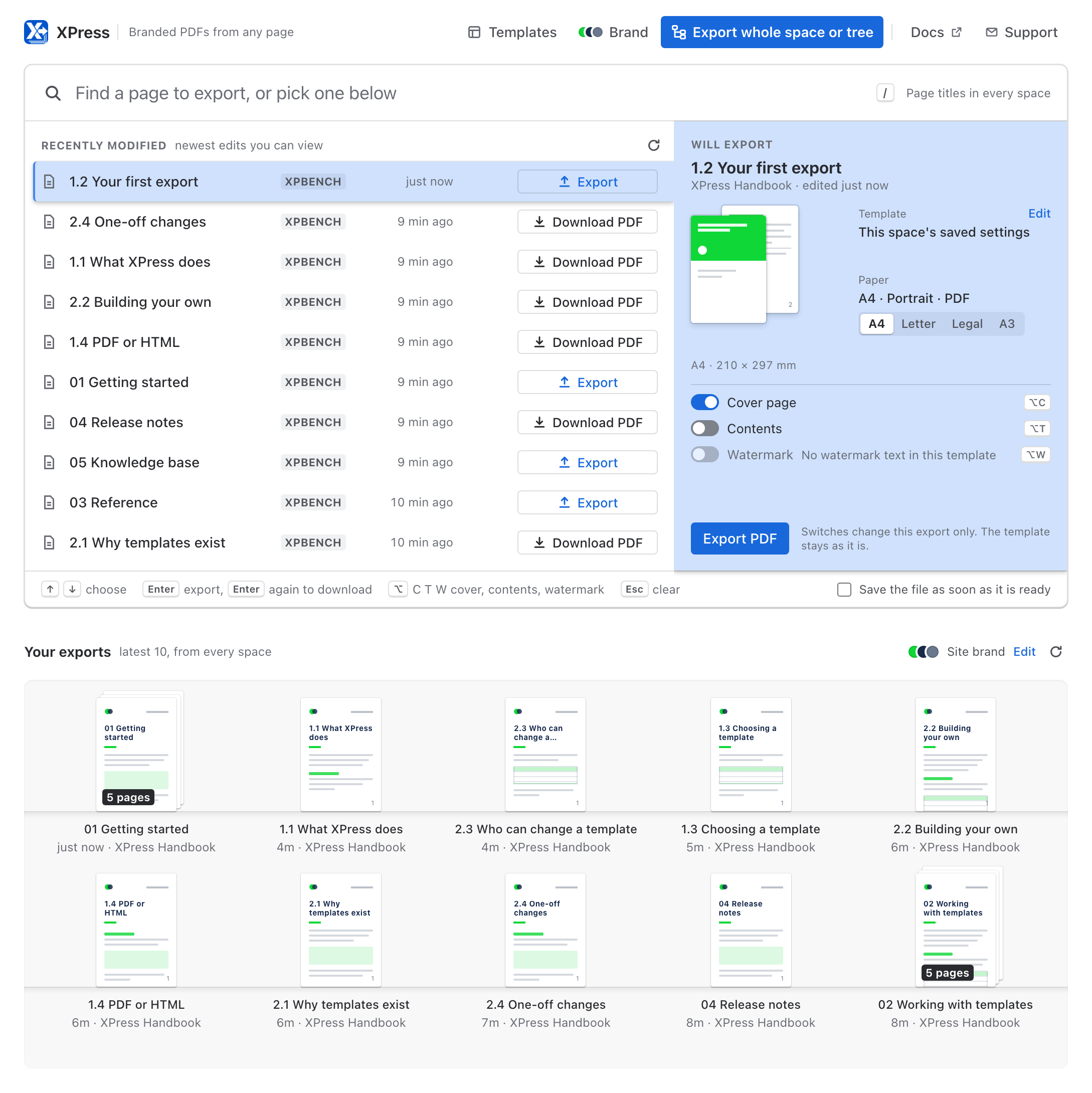
XPress also has a page of its own under Apps, made for the moment you know which page you want. Find it by its title or pick it from the pages edited most recently, see which template it will come out in, then press Enter to export it and Enter again to download it. Below the list, your latest exports from every space sit on a shelf, drawn in your site’s colours and ready to download again. Your templates, your brand and the whole-space export are one click away.
And every page carries an Export (XPress) action (in its byline and the ··· content menu), so you can export it without leaving it.
How XPress fits into your workflow
Section titled “How XPress fits into your workflow”Open a space → XPress (space sidebar)Pick pages → Tick pages, or take a branch with All under itChoose a template → A starter, your team's, or the space's defaultExport → Your document appears as a downloadNeed an older one? → The space's shelf shows the latest 10Just one page? → Apps → XPress: Enter to export, Enter to downloadYour own exports? → Apps → XPress: the shelf below the listRequirements
Section titled “Requirements”- Confluence Cloud - XPress is not available for Confluence Server or Data Center.
- A user account with permission to view the pages you want to export.