Sharing & Team Gallery
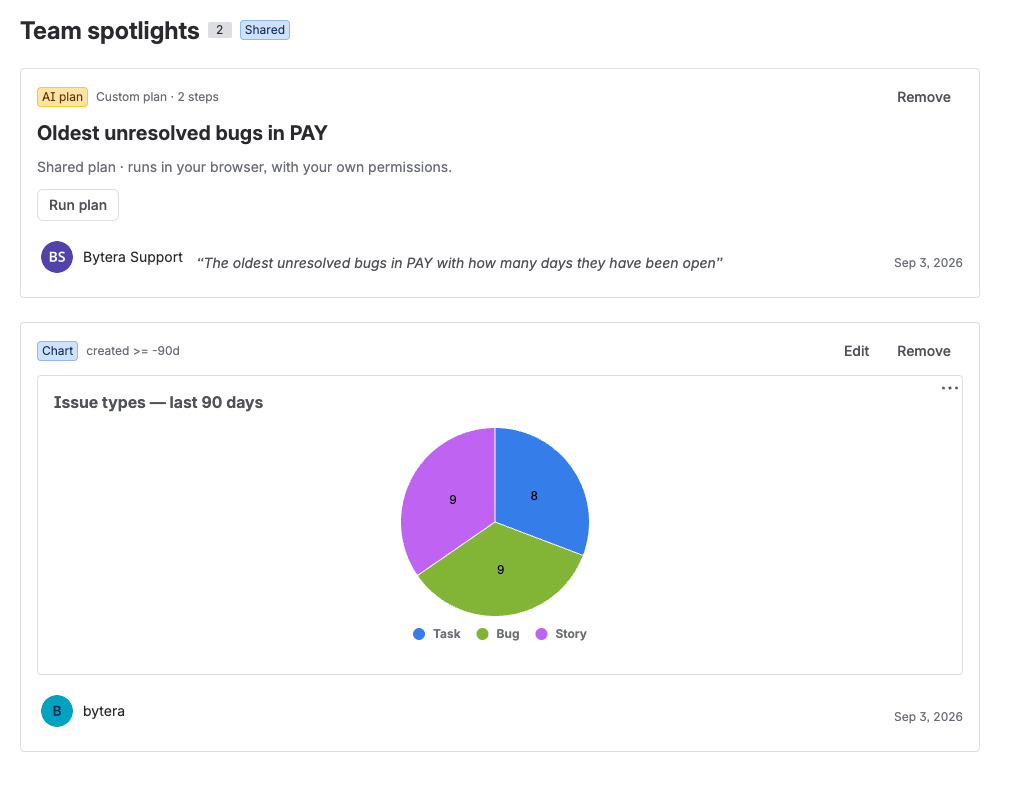
Every spotlight is private by default. Choosing Shared with the team at save time publishes it to the site-wide Team spotlights gallery, visible below everyone’s personal gallery.
What sharing shares - and what it never does
Section titled “What sharing shares - and what it never does”Sharing publishes the spotlight’s definition: its settings (JQL, plan, configuration), title, your original description, your name, and the date. It does not publish data.
When a teammate opens a shared spotlight, it renders live, with their own Jira permissions:
- A shared JQL chart re-runs the query as the viewer - they see only issues they can see.
- A shared access review shows only the projects the viewer administers.
- A shared custom plan executes with the viewer’s permissions, never the author’s.
Two people can look at the same shared spotlight and see different numbers. That’s the design: sharing a spotlight can never become a way around Jira permissions.
You only see what you could see anyway
Section titled “You only see what you could see anyway”The gallery is filtered by your own project access. A shared spotlight that names a project you cannot browse is not listed for you at all - not its title, not its description, not the query behind it. That matters because a published spotlight carries its author’s own settings, and those settings can name projects, boards and groups.
Jira admins are not filtered, because removing a spotlight is done from this list.
Who can publish and who can view
Section titled “Who can publish and who can view”By default, everyone on the site can publish to and view the team gallery. Jira admins can restrict either capability to specific Jira groups on the Settings page - for example, allow everyone to view but only a “reporting” group to publish. Publishing also needs view access, so nobody can add to a gallery they cannot see. Jira admins always retain both capabilities.
Managing shared spotlights
Section titled “Managing shared spotlights”- Edit - authors can edit their own shared spotlights in place (the builder opens with the saved settings and description). Publish permission is re-checked on every edit.
- Remove - authors can remove their own; Jira admins can remove any shared spotlight (moderation).
- Visibility is fixed after saving. A private spotlight can’t be flipped to shared (or back) in place - delete and recreate with the other visibility. The builder states this on edit.
Gallery limits
Section titled “Gallery limits”To keep the gallery scannable and healthy:
- 200 shared spotlights per site.
- 15 shared spotlights per author.
- 50 private spotlights per person, and a size budget alongside the count: very large AI plans take more room, so a gallery of them can fill up before it reaches 50. Spotlight then says the gallery is full and asks you to delete one, instead of failing the save.
Deleting one frees the slot immediately.
- Settings - the group-based permission matrix.
- Project Access Review - the clearest example of permission-safe sharing.